Plain-English technology

Useful technology, explained without the noise.

Life Me Tech publishes practical guides for AI, phones, apps, online safety and the digital tools you use every day.

Explore latest guidesHow we work
Showing posts with label Mobile Tips. Show all posts

Sunday, 18 October 2026

Phone Dead by 3 PM? 9 Hidden Battery Drains (and How to Kill Them)

Your phone was at 100% when you left the house. By 3 PM it's gasping at 12%, and you haven't even done anything dramatic — no gaming marathons, no 4K video editing. Sound familiar? The truth is your battery isn't the problem. Nine sneaky settings are quietly sipping power all day long, and most of them take under a minute to fix.

Phone Dead by 3 PM? 9 Hidden Battery Drains (and How to Kill Them)

1. Background App Refresh Running Wild

Dozens of apps refresh content in the background so they feel instant when you open them — and each one costs battery. On iPhone, go to Settings > General > Background App Refresh and switch it off for everything except messaging and navigation apps. On Android, go to Settings > Apps, tap the worst offenders, and restrict background activity. This single change is the biggest battery saver on this list for most people.

2. Location Services Set to "Always"

Check which apps have permanent access to your location — you'll be shocked. That shopping app does not need to know where you are at 2 AM. On iPhone: Settings > Privacy & Security > Location Services, and change everything non-essential to "While Using" or "Never". On Android: Settings > Location > App permissions. Your GPS radio is one of the hungriest components in your phone, and taming it can add an hour or more of screen time.
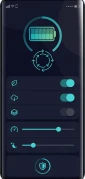
Tame location services to save battery — Phone Dead by 3 PM? 9 Hidden Battery Drains (and How to Kill Them)

3. 5G Running When You Don't Need It

5G is fast — and thirsty. If you're mostly on Wi-Fi at home or the office, your phone is burning extra power maintaining a 5G connection you aren't using. On iPhone, go to Settings > Mobile Data > Mobile Data Options > Voice & Data and choose "5G Auto", which drops to 4G when speed doesn't matter. Android users: search Settings for "Preferred network type" and pick 4G/5G auto-switching. You won't notice the difference; your battery will.

4. Maximum Brightness and 120Hz Display

Your screen is the number one battery consumer, full stop. Turn on auto-brightness (it's in Accessibility settings on both platforms) and stop manually cranking it to maximum. If your phone has a 120Hz display, check whether you can switch to 60Hz or adaptive mode — silky scrolling looks lovely but costs roughly 10–15% more battery. Dark mode on OLED screens genuinely helps too, since black pixels are literally switched off.

5. Email Set to "Push"

Push email keeps a constant connection open so messages arrive instantly — a 24/7 battery tax for most people. Switch your accounts to fetch every 15 or 30 minutes instead: iPhone users, it's under Settings > Mail > Accounts > Fetch New Data; Android users, check your email app's sync settings. Unless you're a surgeon on call, a 15-minute email delay will not ruin your life.

6. Widgets Updating Constantly

That weather widget, stock ticker and news feed on your home screen refresh themselves on a schedule — each update wakes your phone's radios. Keep the widgets you actually glance at and delete the rest. On both iPhone and Android, long-press a widget and remove it in seconds. Fewer widgets means fewer background wake-ups, and honestly, a cleaner home screen too.
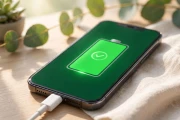
Stop constant widget updates to extend battery life — Phone Dead by 3 PM? 9 Hidden Battery Drains (and How to Kill Them)

7. Bluetooth and Wi-Fi Scanning

Even with Bluetooth "off" in quick settings, many phones keep scanning for devices in the background. On Android, check Settings > Location > Wi-Fi and Bluetooth scanning and disable both. On iPhone, remember that Control Centre toggles don't fully switch Bluetooth and Wi-Fi off — go into Settings proper to disable them when you truly don't need them, like overnight.

8. Social Apps Autoplaying Everything

Instagram, TikTok and Facebook autoplay videos the moment they appear — burning data and battery while you scroll past. Open each app's settings and switch video autoplay to "Wi-Fi only" or off entirely. Heavy social scrollers regularly gain 30–60 minutes of extra battery from this one tweak, and your data plan will thank you too.

9. An Ageing Battery You're Ignoring

Sometimes it's not settings — it's chemistry. iPhone users: check Settings > Battery > Battery Health & Charging. If maximum capacity is under 80%, Apple considers the battery worn out, and no setting will fix that. Android users can check battery health in Settings > Battery on most newer phones, or with a free app like AccA. A $49–$89 battery replacement at an Apple Store or repair shop can make a three-year-old phone feel brand new.

Quick win: do this right now — it takes 90 seconds. Turn on Low Power Mode (iPhone) or Battery Saver (Android) and leave it on all the time. Modern phones handle it gracefully, and it automatically throttles half the drains on this list. Then work through the settings above one evening this week for the full effect.

You don't need a new phone — you need a leaner one. Apply even half of these fixes and that 3 PM battery panic becomes a distant memory. And if your battery health is under 80%, skip straight to fix number nine: a fresh battery is the cheapest upgrade you'll ever buy.

Want to build your own online business for free? Start here

10 Hidden Phone Settings You Should Change Right Now

Your phone ships with dozens of settings tuned for the manufacturer — not for you. Buried in the menus are switches that boost battery life, cut annoying ads, speed up your phone, and protect your privacy. Most people never touch them.

Here are 10 settings worth changing today. They work on most modern Android phones and iPhones (the exact menu names may vary slightly), and each takes under a minute.

1. Turn Off Background App Refresh for Apps You Don't Need

Apps refresh in the background to show you fresh content — and drain your battery doing it. Go to Settings → Battery (or Background App Refresh on iPhone) and disable it for social media and shopping apps. You'll barely notice the difference, except in battery life.

2. Limit Location Access to "While Using the App"

Dozens of apps track your location around the clock. In Settings → Privacy → Location Services, change every app that doesn't need constant tracking to "While Using the App" or "Never." Your battery and your privacy both improve instantly.

3. Enable Auto-Delete for Old Messages

Text threads with photos and videos eat gigabytes of storage. Turn on auto-delete for messages older than 30 days or a year (Settings → Messages on iPhone, or your messaging app's settings on Android). Your phone stays fast and your storage stays free.

4. Switch On "Reduce Motion" for a Snappier Feel

Animations look pretty but make your phone feel slower, especially on older devices. Enabling Reduce Motion (Accessibility settings) cuts the fancy transitions and makes everything feel instant. It also helps if animations give you headaches.

5. Set a Data Saver and Download Limit

Streaming apps can burn through your mobile data in days. Enable Data Saver mode and set download/download-quality limits inside YouTube, Netflix, and music apps (SD instead of HD). Your data plan will last the whole month.

6. Turn On Automatic Night Shift / Dark Mode

Dark mode isn't just stylish — on OLED screens it genuinely saves battery because black pixels are switched off. Schedule it to turn on automatically at sunset so your eyes relax in the evening and your battery stretches further.

7. Disable Personalized Ads Tracking

Your phone has an advertising ID that lets apps build a profile of you. On iPhone: Settings → Privacy → Tracking, turn off "Allow Apps to Request to Track." On Android: Settings → Privacy → Ads, delete or reset your advertising ID. Fewer creepy ads, more privacy.

8. Enable Find My Phone and Remote Wipe

If your phone is ever lost or stolen, this is the setting that saves you. Make sure Find My iPhone (or Find My Device on Android) is enabled and you know your account password. You can locate, lock, or erase your phone from any browser.

9. Turn On Wi-Fi Calling at Home

Got weak signal in your house but good Wi-Fi? Enable Wi-Fi Calling so your calls route through your internet connection. Calls sound clearer, and you stop dropping them in dead zones. It's free on most carriers.

10. Schedule Do Not Disturb for Sleep

Set Do Not Disturb to activate automatically at bedtime and lift in the morning. Allow calls from favorites only, for emergencies. Better sleep, no 3 a.m. notification anxiety — and you wake up to a phone that didn't buzz all night.

Bonus: Clear Cached App Data Every Month

Apps hoard cached files that can grow into gigabytes over time. Once a month, go to Settings → Apps, tap your heaviest apps (social media and browsers are the worst offenders), and clear their cache. This doesn't delete your logins or personal data — it just removes temporary junk. You'll often recover 2–5 GB in five minutes.

Bonus: Keep Your OS and Apps Updated

Those "update available" notifications aren't just annoying — updates patch security holes and fix bugs that slow your phone down. Turn on automatic updates for apps, and install system updates within a few days of release. An outdated phone is both slower and more vulnerable.

One Final Tip: Restart Your Phone Weekly

No setting replaces a simple weekly restart. It clears temporary glitches, frees memory, and applies pending updates. Set a reminder, hold the power button, and give your phone a fresh start every Sunday.

These ten changes take about fifteen minutes total — and your phone will feel newer, last longer on a charge, and respect your privacy far more than it did this morning.

Want to build your own online business for free? Start here — free tools to launch your first funnel, email list, and online course.


Life Me Tech