Plain-English technology

Useful technology, explained without the noise.

Life Me Tech publishes practical guides for AI, phones, apps, online safety and the digital tools you use every day.

Explore latest guidesHow we work
Showing posts with label Internet Safety. Show all posts

Sunday, 18 October 2026

7 Texts and Calls You Should Never Answer in 2026

Americans lost over $12 billion to scams last year, and most of it started with a text or a phone call that looked completely ordinary. Scammers in 2026 are polished, patient and terrifyingly good at sounding legitimate. The good news: almost every phone scam follows one of seven familiar scripts. Learn them once, and you'll spot the next attempt in seconds.
7 Texts and Calls You Should Never Answer in 2026

1. The "Package Delivery Failed" Text

"USPS: Your package could not be delivered. Click here to reschedule." You didn't order anything, but curiosity wins and you tap the link — which leads to a fake site harvesting your card details for a $0.30 "redelivery fee". Real carriers never ask for payment or personal details by text. Rule: never tap delivery links from unknown numbers. Track parcels only through the retailer's official app or website.

2. The Bank "Fraud Alert"

A text claiming suspicious activity on your account, urging you to click a link or call a number "immediately". The panic is the point — rushed people don't think. Real banks will never ask you to verify your full account number, password or one-time code by text or on a call they initiated. Rule: hang up, then call the number on the back of your debit card yourself. If the alert was real, they'll confirm it.
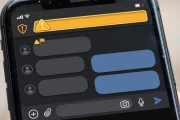
Fake bank fraud alert text scam — 7 Texts and Calls You Should Never Answer in 2026

3. The IRS or Government Threat

"This is Officer Daniels from the IRS. You owe $4,200 in back taxes. Pay now or face arrest." It sounds official, and the caller ID may even say "IRS". It's always fake. The IRS contacts you by physical mail first, never demands payment by gift card or wire transfer, and never threatens immediate arrest. The same goes for "Social Security suspended" calls and jury-duty fines. Rule: government agencies don't do threats by phone. Hang up.

4. The "Wrong Number" New Friend

It starts innocently: "Hi, is this Sarah? Sorry, wrong number!" Then they keep chatting — friendly, funny, gradually personal. Weeks later comes the investment "opportunity", usually crypto, with screenshots of their amazing returns. This is "pig butchering", one of the fastest-growing scams in America. Rule: a stranger who texts the wrong number and then wants to be your friend is never a coincidence. Block and move on.

5. The One-Ring Call

Your phone rings once from an unfamiliar number — often with a strange area code or a "+" international prefix — then stops. Call back out of curiosity and you're connected to a premium-rate number charging you by the minute, with the scammer keeping a cut. This "wangiri" scam costs victims millions yearly. Rule: never return one-ring calls from numbers you don't recognise. If it mattered, they'd leave a voicemail.

6. The Too-Good Job Offer

"Hi! We found your resume and have a remote position paying $35/hour. Reply YES to apply." No interview, no company name you can verify, just easy money. The catch comes later: they "hire" you, send a fake cheque to buy equipment, and ask you to forward the "extra" funds — classic cheque fraud. Or they harvest your Social Security number for identity theft during "onboarding". Rule: legitimate employers don't recruit by random text, and real jobs never require you to pay upfront or cash cheques for strangers.

Too-good job offer text scam — 7 Texts and Calls You Should Never Answer in 2026

7. The Urgent Charity Plea

After every hurricane, wildfire or tragedy, fake charities start calling within hours. The caller is emotional, the cause is real, and the pressure to donate "right now" is intense. Some are outright fake; others are real-sounding names mimicking legitimate charities. Rule: never donate to a cold caller. Note the charity's name, hang up, and verify it on CharityNavigator.org or the FTC's charity checker before giving a cent.

Quick win: forward every scam text to 7726 (spells SPAM) — your carrier uses these reports to block scammers network-wide. Then report the number at ReportFraud.ftc.gov, which takes two minutes. On iPhone, enable Settings > Phone > Silence Unknown Callers; on Android, turn on spam filtering in the Phone app. These three steps cut scam attempts dramatically within weeks.

Scammers succeed because they exploit urgency, kindness and curiosity — three very human traits. The universal defence is beautifully simple: slow down. No legitimate bank, agency or employer needs your answer in the next 60 seconds. When in doubt, hang up, look up the real number yourself, and call back. That one habit makes you nearly scam-proof.

Want to build your own online business for free? Start here

6 Public Wi-Fi Mistakes That Put Your Accounts at Risk

Free Wi-Fi at cafés, airports, and hotels feels like a small gift — until it costs you your email, your bank login, or your identity. Public networks are shared spaces, and attackers know exactly how to exploit the habits most of us have on them. The good news is that staying safe doesn't require technical skills, just a few smarter habits. Here are the six mistakes people make most often on public Wi-Fi, and what to do instead.

Person using public Wi-Fi on a laptop in a café

1. Connecting Automatically to Any Open Network

Many phones are set to auto-join open Wi-Fi networks, which means yours may connect to a stranger's hotspot without you noticing. Attackers exploit this with "evil twin" networks — fake hotspots named "CoffeeShop_Free_WiFi" that look legitimate but route your traffic through their device. Turn off auto-join in your Wi-Fi settings and always confirm the exact network name with staff before connecting. It takes ten seconds and removes one of the easiest attack paths entirely.

2. Logging Into Sensitive Accounts Without Protection

Checking your bank balance or work email over café Wi-Fi is one of the riskiest things you can do online. On unencrypted networks, your login details can potentially be intercepted as they travel. The simplest fix is a reputable VPN, which encrypts everything between your device and the internet — many solid options cost a few dollars a month, and some trustworthy free tiers exist for light use. At minimum, make sure the sites you visit use HTTPS (look for the padlock icon), and save banking and financial logins for your mobile data or home network whenever possible.

Warning shown on an unsecured Wi-Fi network

3. Ignoring the "This Network Isn't Secure" Warning

Your phone and laptop warn you when a network lacks proper encryption — and most people tap "connect anyway" without thinking. That warning means anyone nearby with basic tools could potentially see unencrypted traffic on the network. Treat the warning as a real signal: use a VPN if you must stay connected, avoid entering passwords or payment details, and disconnect when you're done rather than staying joined all day. Warnings exist because the risk is genuine, not because your device is being dramatic.

4. Leaving File Sharing and AirDrop Open

Features like Windows network discovery, macOS file sharing, and AirDrop's "everyone" mode are convenient at home but dangerous on public networks — they can expose your files or let strangers send things directly to your device. Before joining public Wi-Fi, set your network profile to "Public" on Windows (which locks down sharing automatically) and set AirDrop to "Contacts Only" or "Receiving Off" on Apple devices. These are one-time settings changes that take under a minute and close a door most people don't even know is open.

Two-factor authentication prompt on a phone

5. Staying Logged In to Everything, Everywhere

Staying permanently signed in to email, social media, and shopping accounts is convenient — until someone grabs your session on an open network. Session cookies can sometimes be hijacked, letting an attacker browse as you without needing your password. Get in the habit of signing out of sensitive accounts when you're done on public Wi-Fi, and turn on two-factor authentication everywhere it matters: email, banking, and social accounts at minimum. Two-factor authentication means that even if someone steals your password, they still can't get in without your phone.

6. Skipping Updates That Patch Security Holes

Those "update available" notifications are annoying, but they often fix security vulnerabilities that attackers actively exploit on public networks. An unpatched phone or laptop is a much softer target. Enable automatic updates on your phone and computer so patches install without you thinking about it, and update your apps regularly too — especially your browser and VPN app. Outdated software is one of the most common reasons real-world attacks succeed, and fixing it requires zero effort once automatic updates are on.

Public Wi-Fi doesn't have to be dangerous — it just demands a little more caution than your home network. Confirm network names, use a VPN for anything sensitive, lock down sharing, sign out when you're done, and keep your devices updated. None of these steps takes more than a few minutes to set up, and together they turn you from an easy target into someone attackers will simply skip in favour of easier prey.

Interested in building an online income stream step by step? Start here

VPNs Explained: 5 Myths People Still Believe in 2026

VPNs are one of the most misunderstood tools on the internet. Ads promise total invisibility, friends say they're only for "shady stuff," and half the advice online contradicts the other half. Let's clear things up with plain English and five myths that refuse to die.

First, the basics: a VPN (Virtual Private Network) encrypts your internet traffic and routes it through a server run by the VPN company. Websites see the VPN server's location instead of yours, and anyone snooping on your connection — like a sketchy public Wi-Fi hotspot — sees scrambled data instead of your browsing.

Myth 1: "A VPN Makes You 100% Anonymous Online"

This is the biggest myth, and it's simply not true. A VPN hides your traffic from your internet provider and local snoopers, but the VPN company itself can still see your activity. You're also still identifiable through logged-in accounts, cookies, and browser fingerprinting. A VPN is a privacy tool, not an invisibility cloak. For real anonymity you'd need a whole system (like the Tor network), not just one app.

Myth 2: "Only People Doing Something Shady Need a VPN"

Journalists protecting sources, remote workers accessing company systems, travelers using hotel Wi-Fi, and everyday people who don't want their internet provider selling their browsing data — VPNs are mainstream privacy tools. Using one is no more suspicious than locking your front door.

Myth 3: "Free VPNs Are Just as Good as Paid Ones"

Running VPN servers costs real money. If you're not paying, the company is making money some other way — and with some free VPNs, that way is logging and selling your data, injecting ads, or limiting you so heavily the service is unusable. Reputable paid VPNs typically cost a few dollars a month and publish independent security audits. If you must use a free one, pick a well-known provider with a clearly limited free tier from the same paid company.

Myth 4: "A VPN Protects You From Viruses and Hackers"

A VPN encrypts your connection, but it does nothing against malware, phishing emails, or a fake website that steals your password. You still need antivirus software, strong unique passwords, and a healthy suspicion of "urgent" messages. Think of a VPN as a tinted window on your car — it hides what's inside, but it won't stop you from crashing.

Myth 5: "A VPN Slows Your Internet to a Crawl"

This was truer in 2015 than in 2026. Modern VPN protocols (like WireGuard) are fast and efficient — on a good connection, most people notice little to no slowdown for browsing and streaming. If your VPN is painfully slow, try switching to a server closer to you or a different protocol in the app's settings. The technology has genuinely improved.

How to Choose a Trustworthy VPN

If you decide to get one, choose carefully — a bad VPN is worse than no VPN. Look for these five things: a strict no-logs policy backed by an independent audit (not just a marketing claim); modern protocols like WireGuard; apps for all your devices with a kill switch that blocks internet if the VPN drops; transparent ownership and a clear privacy policy; and a money-back guarantee so you can test it risk-free. Be wary of review sites that rank VPNs by commission — check multiple independent sources, including tech publications and privacy communities, before paying.

When Should You Actually Use a VPN?

The clearest use cases: public Wi-Fi at cafes, airports, and hotels; accessing your home or work network remotely; and preventing your internet provider from building a detailed profile of your browsing. For everyday home browsing on a trusted network, the benefit is smaller — but it's still a reasonable choice.

Bottom line: a VPN is a useful, legitimate privacy tool with real limits, and knowing those limits is what separates a smart user from a misled one. Ignore the hype in both directions — it won't make you invisible, and it won't make you a criminal. Used wisely, it's one solid layer in a sensible approach to online privacy.

Want to build your own online business for free? Start here — free tools to launch your first funnel, email list, and online course.


7 Signs Your Email Was Hacked (and Exactly What to Do Next)

Email is the master key to your digital life. Password resets for your bank, your social media, your shopping accounts — they all flow through your inbox. So when hackers get into your email, everything else is at risk too.

The good news: most email hacks leave clues. Here are the seven warning signs to watch for, and a clear step-by-step recovery plan if the worst has happened.

Sign 1: Password Reset Emails You Didn't Request

Getting a "reset your password" email out of nowhere is the classic red flag. It means someone entered your email address on a site's password-reset form — often as a first step in taking over your accounts. Don't click the link in that email; go to the site directly instead.

Sign 2: Sent Emails You Never Wrote

Check your Sent folder. Spam blasts, strange links sent to your contacts, or replies you never typed mean someone else is using your account. Your contacts are now at risk too, because the messages come from a trusted address — yours.

Sign 3: Login Alerts From Strange Locations

Most email providers show recent login activity. If you see sign-ins from cities or countries you've never visited, especially at odd hours, treat it as a breach. Review this in your account's security or activity page right now — it takes 30 seconds.

Sign 4: Your Contacts Report Spam From You

Sometimes you won't see anything in your Sent folder (hackers delete the evidence), but friends tell you they got weird messages from you. That's just as serious. Believe them, not your empty Sent folder.

Sign 5: Settings Changed Without Your Knowledge

Hackers often set up email forwarding rules so a copy of your mail goes to them silently. Check your forwarding settings, filters, and recovery email/phone number. If anything looks unfamiliar — a recovery address you don't recognize — remove it immediately.

Sign 6: You Can't Log In Anymore

The bluntest sign: your password suddenly doesn't work. This usually means the attacker changed it to lock you out. Act fast — use the account recovery process immediately, because the longer you wait, the more damage they can do.

Sign 7: Security Alerts From Your Provider

Google, Microsoft, and Apple all send alerts about suspicious activity. Don't ignore them or dismiss them as noise. Read every security alert carefully and follow its instructions the same day.

How Hackers Usually Get In

Understanding the attack helps you prevent the next one. The most common entry point is phishing — a fake login page that looks exactly like Gmail or Outlook, reached through a convincing email or text message. You type your real password into a fake site, and the attacker captures it in real time.

The second most common method is password reuse. If you used the same password on a shopping site that later got breached, attackers try that password on email accounts automatically — a technique called credential stuffing. Billions of leaked passwords circulate in these databases, so "nobody would target me" is not protection. Malware on your device and weak recovery questions ("your mother's maiden name") round out the list. Every one of these is fixable with the checklist below.

What to Do Right Now: The Recovery Checklist

Step 1: Change your email password immediately, using a long, unique passphrase you've never used anywhere else. Do this from a device you trust.

Step 2: Turn on two-factor authentication (2FA). This single step blocks the vast majority of future attacks, because a stolen password alone is no longer enough.

Step 3: Review and remove unknown forwarding rules, filters, connected apps, and recovery addresses.

Step 4: Sign out of all sessions everywhere, forcing every device to log in again.

Step 5: Change passwords on your most important accounts — banking, social media, shopping — starting with any that shared the old email password.

Step 6: Warn your contacts if spam went out in your name, so they don't click the malicious links.

Prevent It From Happening Again

Use a password manager so every account gets a unique, strong password. Keep 2FA on everywhere that offers it. And be skeptical of "urgent" emails asking you to log in — always navigate to the site yourself instead of clicking email links. A hacked email is recoverable; a few calm minutes of action make all the difference.

Want to build your own online business for free? Start here — free tools to launch your first funnel, email list, and online course.


Life Me Tech